
Managing pages and sections
Once your flatplan is set up, most of your time will be spent arranging and refining pages. This article covers everything you can do with pages – individually and in bulk.
Selecting pages
Section titled “Selecting pages”Click a page to select it. Hold Shift to select a range of adjacent pages. Hold Command (Mac) or Ctrl (Windows) to select non-adjacent pages. The sidebar updates to show actions relevant to your current selection.
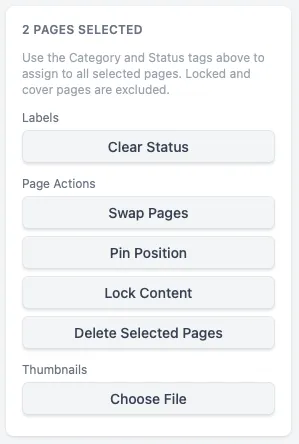
When you have multiple pages selected, the sidebar shows the multi-page actions: swap, pin, lock, delete, and choose thumbnails.
Moving pages
Section titled “Moving pages”Select a page (or several) and drag. An insertion line appears between pages as you drag to show exactly where the page will land when you release the mouse. Single pages and multi-page selections both move together this way.
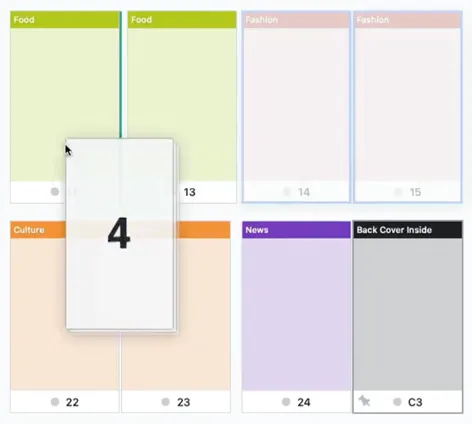
As you drag, the cursor shows what’s about to happen: a grab cursor for a move, a copy cursor when duplicating (see below), and a not-allowed cursor if the drop target isn’t valid. Dragging a page near the top or bottom edge of the work area scrolls it automatically, so you can move pages across a long flatplan without scrolling first.
Swapping pages
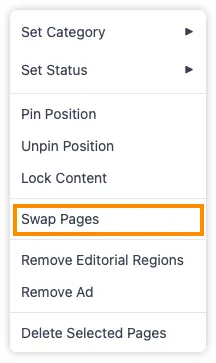
Section titled “Swapping pages”To swap two non-adjacent pages without disturbing everything in between: hold Command/Ctrl and click both pages to select them, then right-click and choose Swap pages. The two pages exchange positions; nothing else moves.
Inserting pages
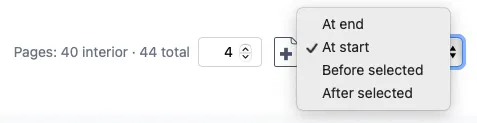
Section titled “Inserting pages”Use the page count controls in the top bar to add pages. You have two options:
- Add to the end – new pages are inserted just before the back cover (cover pages are always fixed).
- Add before or after a selected page – select the page you want to insert around, then choose the position from the dropdown.
Duplicating pages
Section titled “Duplicating pages”When a page is nearly identical to one you have already set up, duplicate it instead of rebuilding it. Select a page – or several – then right-click and choose Duplicate Page, or Duplicate Selected Pages when more than one is selected. The same command sits in the menu bar under Edit → Duplicate.
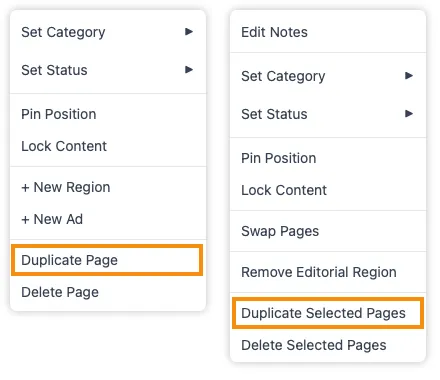
The copies are inserted directly after the last page of your selection, in document order, and they arrive selected, so you can move or edit them straight away. However many pages you duplicated, undoing it is a single step.
A copy carries everything the original had: category, status, notes, thumbnail, advertisements, and editorial regions. Two details are worth knowing:
- A locked page produces a locked copy. The lock protects a page’s content, and the copy shares that content – unlock it if you want to edit it.
- A pinned page produces an unpinned copy. Pinning anchors a page to one position, and the copy is somewhere else by definition.
Cover pages can’t be duplicated. There are exactly four of them and their positions are fixed, so the duplicate command doesn’t appear when you right-click a cover.
Duplicating by dragging. You can also hold Option/Alt and drag a page to drop a copy where you want it. Hold the key down before you start moving the page – pressing it partway through a drag won’t turn a move into a copy. If you release Option/Alt partway through, the drag switches to a regular move instead, dropping the original page rather than a copy.
Deleting pages and the binding warning
Section titled “Deleting pages and the binding warning”Select the pages you want to remove and press the Delete key, or use the delete action in the sidebar or right-click menu.
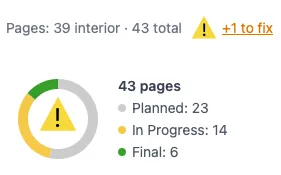
If the resulting page count no longer works for your binding method – a saddle-stitched magazine needs a count divisible by four, for example – PageTatin shows a warning triangle in both the progress ring and the top bar. Click either warning to add the pages needed to fix the count. The new pages are added at the end; drag them to the right position.
Pinning a page position
Section titled “Pinning a page position”Pinning locks a page in place so it cannot be moved by dragging. It’s useful for any page that has a fixed position in the print run.
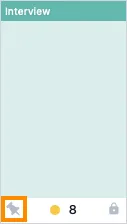
To pin: select the page and click Pin position in the sidebar, or right-click and choose Pin position. A pin icon appears on the page. Trying to drag a pinned page flashes it red.
To unpin: click the pin icon on the page, or use the sidebar or right-click menu.
Locking page content
Section titled “Locking page content”Locking prevents any changes to a page’s category, status, or notes. The relevant sidebar controls dim, and attempting to change them flashes red.

To lock: select the page and click Lock content in the sidebar or right-click menu. A padlock icon appears on the page.
To unlock: click the padlock icon, or use the sidebar or right-click menu.
The right-click menu
Section titled “The right-click menu”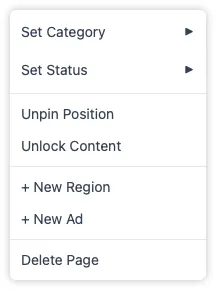
Right-clicking a page gives you a menu that mirrors most of the sidebar: set category, set status, pin or unpin, lock or unlock, add editorial region, add ad, duplicate, and delete. It’s a quick way to act on a page without shifting focus to the sidebar.
Editorial regions
Section titled “Editorial regions”Editorial regions let you subdivide a page into named areas – useful when a page carries more than one piece of content and you want to track them separately.
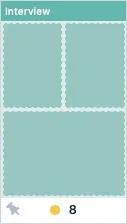
To add a region: select the page, then click Add region in the sidebar or right-click and choose Add new region. Half pages and quarter pages are currently supported.
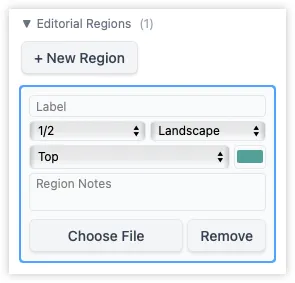
Click a region to bring it into focus in the sidebar. From there you can:
- Switch between half page and quarter page.
- Switch between portrait and landscape orientation.
- Set the position on the page.
- Give the region a label.
To remove a region: click the page, then remove the region from the sidebar.
Once placed, you can move, copy, or swap a region without touching the sidebar. Hover over the region to show its grab handle, then:
- Drag the handle to move the region. Drop it on free space on the same page to rearrange, or on another page, where it keeps its size and settles into the first fitting spot in that page’s region grid. If there’s no room, the drop is refused – a region is never shrunk to fit.
- Hold Option/Alt while dragging to drop a copy instead of moving the original.
- Drop it onto another region of the same size and orientation to swap the two.
- Right-click the region for the same options without dragging: Move Region to Page… (tick Keep the original (duplicate) to copy instead) and Swap Region with… (then click the region to swap with, or pick it with the arrow keys and press Return; Esc cancels).
Locked pages are protected, so unlock a page first if you want to move something off or onto it. Regions can’t be placed on cover pages. Ads work exactly the same way – see Advertisements below.
Advertisements
Section titled “Advertisements”Ads work similarly to editorial regions but are tracked separately in the flatplan.
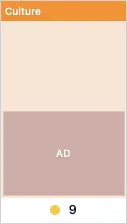
To add an ad: right-click the page and choose Add new ad. The default is a full-page ad.
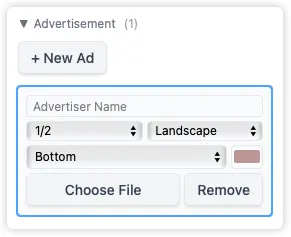
Click the ad to bring it into focus in the sidebar, then choose the size (full page, half page, or quarter page) and its position on the page. To remove an ad, click the page and remove it from the sidebar.

Ads and editorial regions move, copy, and swap in exactly the same way. Hover over an ad to show its grab handle, then drag the handle to move the ad – onto free space on the same page to rearrange, or onto another page, where it keeps its size and settles into the first fitting spot in that page’s ad grid. Hold Option/Alt while dragging to drop a copy instead, or drop the ad onto another ad of the same size and orientation to swap the two. Right-click the ad for Move Ad to Page… (tick Keep the original (duplicate) to copy) and Swap Ad with…. The animation below shows two ads being swapped across pages; editorial regions behave identically.
Page thumbnails
Section titled “Page thumbnails”Thumbnails give you a visual preview of each page’s content directly in the flatplan grid. You can apply them from .jpg or .png image files, or from a single or multi-page .pdf.
To add thumbnails: select the pages you want to fill, then click Choose thumbnails in the sidebar. Pick the file when the file chooser opens. You can also drag and drop a .jpg, .png, or .pdf directly onto the flatplan. Depending on your cursor position you can target pages, editorial regions, or ads as drop zones.
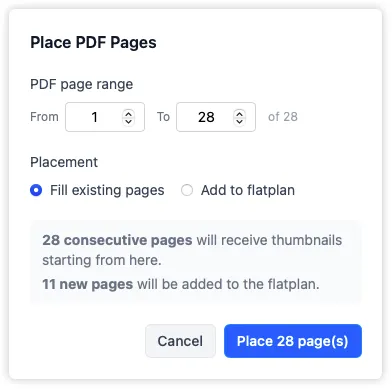
A dialog confirms how many consecutive pages will receive thumbnails starting from the first selected page, and asks whether you want to fill existing pages or also add new pages to match the .pdf. Click Place to apply.
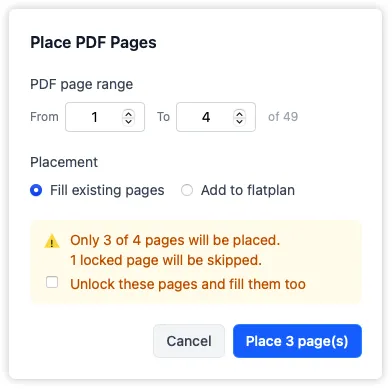
If there are locked pages in your selection, you can unlock them during the thumbnail placing process by clicking the optional checkbox.
Thumbnails taken from print-ready .pdf files often carry crop marks. PageTatin trims these automatically and shows the page at its finished size, so the marks never appear in the thumbnail.
PageTatin handles large issues with many thumbnails without any slowdown.
Spacebar preview
Section titled “Spacebar preview”Hover your cursor over any page and press spacebar to enlarge it for a closer look. Press spacebar again to return to normal. The page doesn’t need to be selected – just hovered.
Progress ring
Section titled “Progress ring”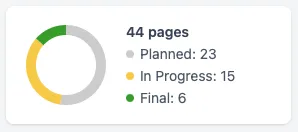
The progress ring at the top of the sidebar gives you a live color-coded breakdown of how many pages are in each status. As you mark pages complete, the ring fills up – a quick visual check of where the issue stands without counting anything.
Page and ad statistics
Section titled “Page and ad statistics”See a detailed overview of the categories applied to your pages, as well as a detailed ad count with ad sizes. If you use inserts, these are shown as a separate entry too.
The page statistics show in the idle UI state when no pages are selected. If you have a page selected, click into an empty area to see the statistics in the sidebar.
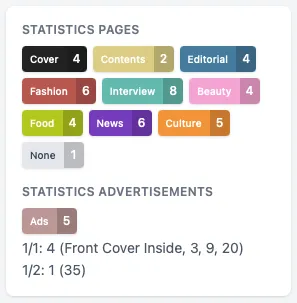
You can optionally add the page statistics to your PDF export, where they appear as a table. You can also export the statistics on their own, without the rest of the flatplan.
What’s next
Section titled “What’s next”When you’re ready to get the flatplan out of the app, Exporting covers the .pdf and .json options. To customise your categories and statuses, or update project details, see PageTatin Settings.