
Activate your license
When you bought PageTatin, you received a license code by email. This article walks through entering it in the app and what happens next.
Where your license code comes from
Section titled “Where your license code comes from”Right after purchase, you’ll receive two emails:
- From Paddle (my payment processor) – your receipt and order details
- From support[at]pagetatin.com – your license code, in a clearly-labeled block
If you don’t see the license code email within a few minutes of purchase, check your spam folder. If it’s not there either, write to support[at]pagetatin.com with your Paddle order number (from the receipt email) and I’ll resend it.
Your license code looks something like this:
XXXX-XXXX-XXXX-CA==Keep this email. The license code is your proof of purchase and the only way to reactivate PageTatin if you ever need to move to a new computer.
Enter the code
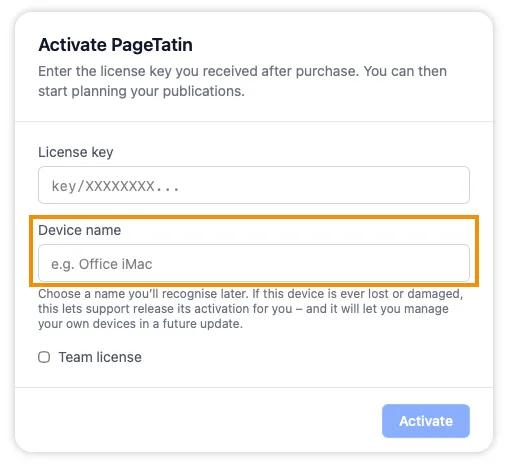
Section titled “Enter the code”When you open PageTatin for the first time (after accepting the EULA), you’ll see the Activation Screen.
- Paste your license code into the input field.
- Click Activate.
PageTatin connects briefly to my license server, verifies the code, registers this computer as an activated device, and stores a small license file on your hard drive. The connection takes 1–3 seconds. After that, the license file on your machine is the proof of activation. All your flatplan data stays on your hard drive.
If you see an error message, the most likely causes are:
- Typo in the license code – paste rather than retype, and double-check there are no leading or trailing spaces.
- No internet connection – PageTatin needs to reach the license server to activate. Check your connection and try again.
- License already activated on too many devices – Freelancer licenses cover 2 devices; Team licenses cover 10 device-slots across 5 people. See Moving to a new device below.
What “two devices” means (Freelancer)
Section titled “What “two devices” means (Freelancer)”The Freelancer license lets you install and activate PageTatin on 2 devices that belong to you – for example, a desktop iMac and a MacBook, or a Mac at work and a Windows PC at home. Both can be in use at the same time. There’s no cloud sync between them; each runs independently.
The 2-device limit is enforced by license activation, not by the running app. You can keep PageTatin installed on as many machines as you like, but only 2 can have an active license.
What “5 people, 10 device slots” means (Team)
Section titled “What “5 people, 10 device slots” means (Team)”The Small Team license covers 5 named people, each able to activate PageTatin on 2 of their own devices. Total: 10 active devices across the team.
At launch, the seat enforcement is trust-based – PageTatin doesn’t currently force a per-seat check, but it does track which devices have activated against the team license. If a team license shows clear pattern abuse (one license code activated on 50 devices across many countries, for example) it can be suspended.
If your team has more than 5 people, write to support[at]pagetatin.com and I’ll set up a custom license.
Moving to a new device
Section titled “Moving to a new device”If you’ve used both of your Freelancer device slots and need to install PageTatin on a third machine – usually because you got a new computer – you’ll first need to deactivate one of the existing devices.
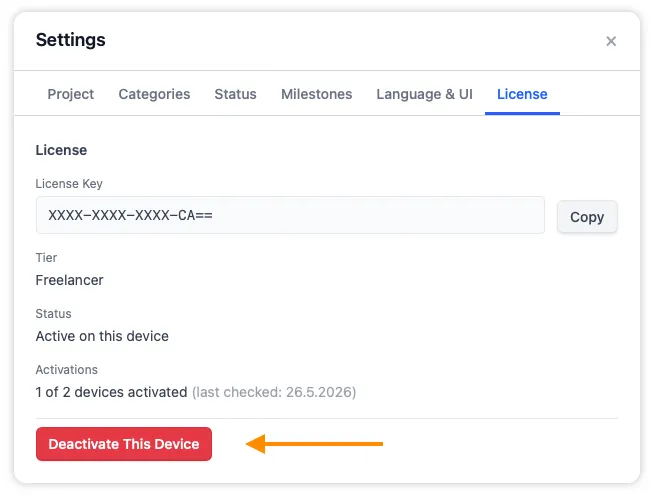
The cleanest way is to deactivate from inside the app, on the old device:
- Open PageTatin on the old device.
- Open Settings (⌘, on macOS or Edit → Settings on Windows).
- Click the License tab.
- Click Deactivate this device.
- Confirm. PageTatin contacts the license server, releases the device slot, and deletes the local license file.
The old device’s PageTatin will then show the Activation Screen again, ready for a new code (or for you to leave unactivated).
You can now activate your license on the new device using the same code.
If the old device is broken, lost, stolen, or otherwise unreachable, write to support[at]pagetatin.com with your license code and I’ll release the slot for you manually. Naming your devices makes it easy to tell me which slot to release.
You give a device its name when you activate it. Pick something you will recognise later – Office iMac, Studio laptop – and it shows next to that activation in the License tab. To name a machine that is already activated, deactivate it and activate it again with the same code.
Your data stays on your machine
Section titled “Your data stays on your machine”All your flatplan data stays on your hard drive. The license file stored during activation is the proof of activation; the app reads it locally on every launch.
Approximately once every 30 days, when you launch PageTatin while connected, it does a quick background check with the license server (under 1 second, completely invisible to you). This is how revoked licenses (refunds, chargebacks, suspended due to clear abuse) get caught. If PageTatin can’t reach the server at launch, it simply tries again next time.
What’s next
Section titled “What’s next”You’re activated and ready to start. See Create your first flatplan.
For everything else about how the license works – refunds, updates, transferring after a hardware crash, paying for more seats – see the License FAQ.